 Somuno
Blog › Guides
How to clean up the audio in a video without re-exporting it
The usual way to remove background noise from a video is a round trip: detach the audio, clean it in an audio app, bring it back into a video editor, line it up, and export the whole video again. That last export re-encodes the picture, which takes time and costs a little image quality every time. If all you want is cleaner speech, you can skip the round trip and replace only the soundtrack.
That's how Somuno handles video on a Mac. Drop in an MP4, MOV or M4V file and it enhances the soundtrack, copies the picture as is without re-encoding, and saves the new video next to the original. This guide shows the steps, explains when to clean audio before or after editing, and when your video editor's own tools are the quicker choice.
Why avoid re-exporting a video?
- Quality. Video is almost always stored with lossy compression such as H.264 or HEVC. Each new encode throws away a little more detail, most visibly in dark scenes, gradients and fine texture.
- Time. A full export of a long video adds a whole render on top of the audio work.
- Surprises. A mismatched frame rate, bitrate or color setting in the export can change the file in ways you didn't intend.
- Sync. Every time audio leaves the video and comes back, it has to be lined up again.
If you're editing the video anyway, none of this matters much: the picture is encoded once at the end regardless. Replacing only the soundtrack is for videos that are already finished as far as the picture goes – a recorded talk, an interview, a screen recording, a clip from your phone.
How Somuno replaces only the soundtrack
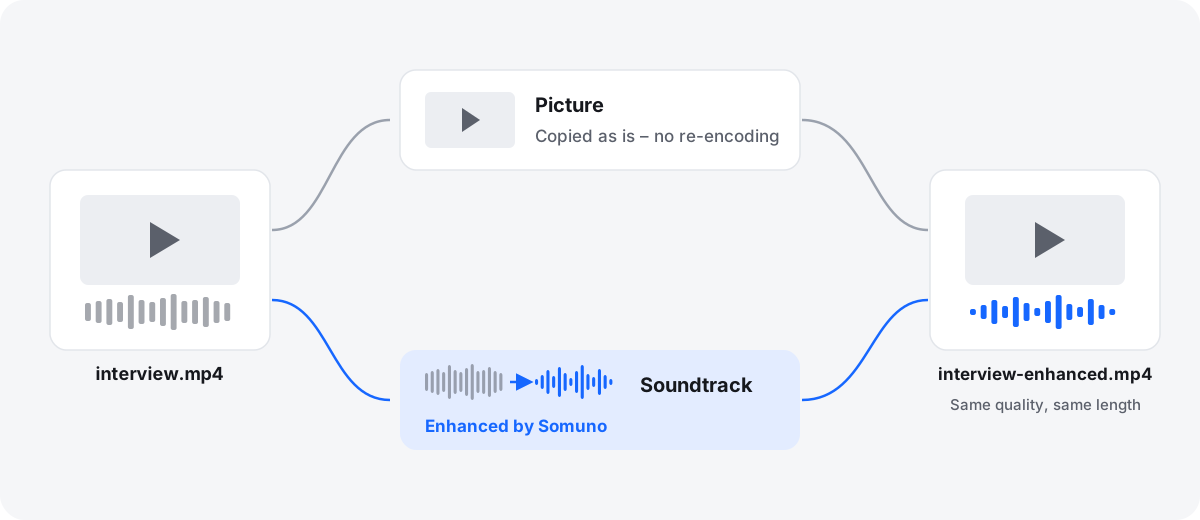
Somuno opens the video, reads its soundtrack, enhances the speech with its AI speech-enhancement model, and writes a new video file with the same picture and the cleaned soundtrack. The original file isn't changed. It works with MP4, MOV and M4V. For other containers, convert the file to MP4 or MOV first.
The model removes background noise and room reverb, and also repairs clipping, missing high frequencies and compression artifacts. It all runs on your Mac's GPU, so the video is never uploaded anywhere.
How to clean up the audio in a video with Somuno
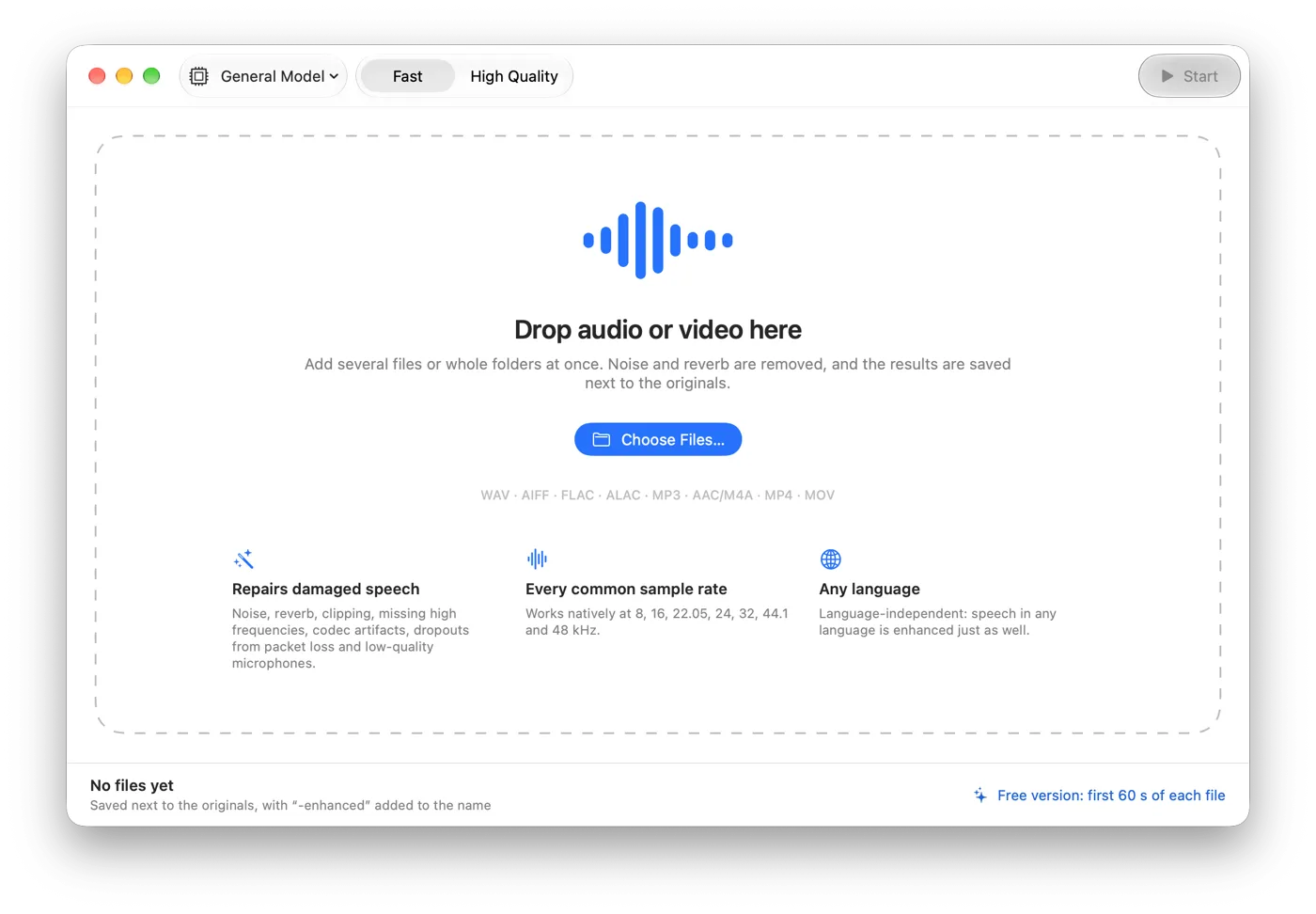
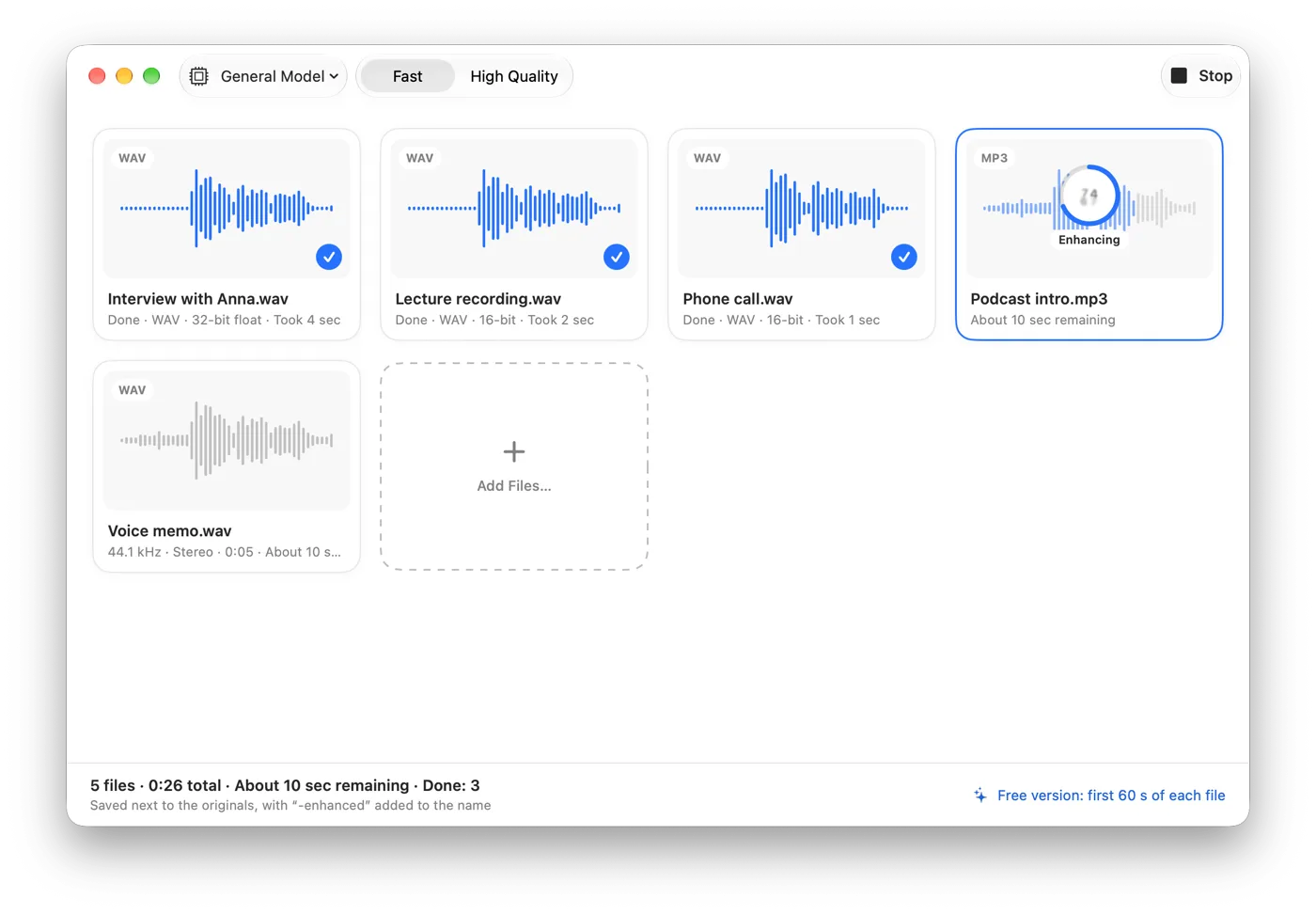
- Drag one or more video files onto the Somuno window, or choose File › Add Files… (⌘O). You can mix videos and audio files in the same queue.
- In the toolbar, keep General Model, or choose Keep Laughter for vlogs, interviews and panels where laughter is part of the moment.
- Choose a Speed: Fast (10-second segments, about 1.7× faster on long files) or High Quality (5-second segments overlapping by half).
- Optionally, open Somuno › Settings… and set Save To: Next to the Original (the default) or Choose Folder… to pick one. Each result gets “-enhanced” added to its name.
- Click Start.
- Double-click a finished file to open Compare, and switch between the original and enhanced soundtrack with A and B while it plays. If the voice sounds over-processed, lower Strength in Settings and process the original again. Then open the new video in your player or editor.
Hear it: talking to a phone camera
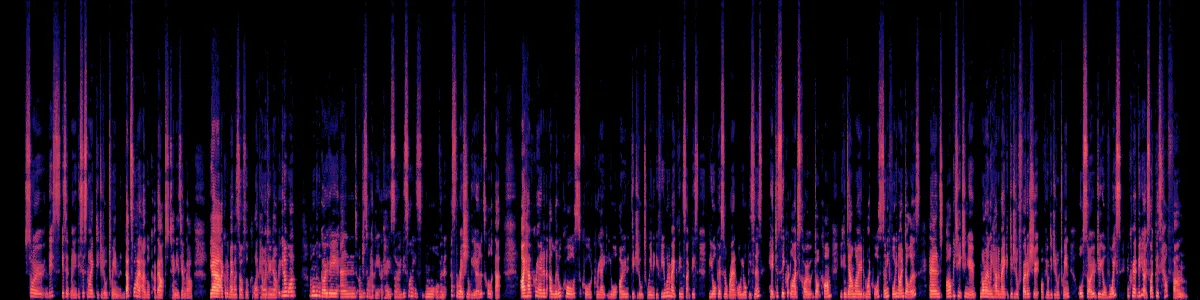
This phone video has noise all around the speaker. It was processed with the default settings, and both versions are set to the same loudness.
Talking to a phone camera
A phone video with noise all around the speaker.
 OriginalEnhanced
Original
Enhanced by Somuno
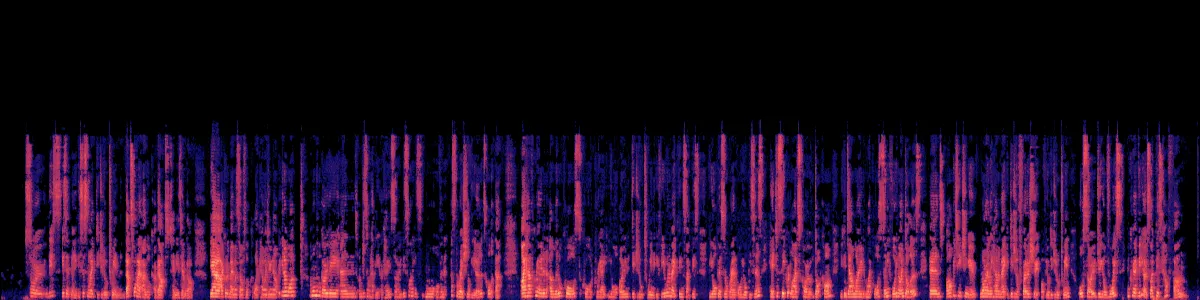
In the original spectrogram, noise sits under and between the words. Afterwards, the gaps between words are dark, and the voice is left on its own.
Should you clean the audio before or after editing?
Before editing is usually the better order for anything with dialogue. Clean the camera originals, then edit with the “-enhanced” files. You hear clean speech while you cut, and you can lay music and sound effects on top afterwards without them being touched.
After editing only works if the finished video contains nothing but speech. Somuno is made for voices, so it removes or distorts music, sound effects and other non-speech sound. A finished video with a music bed is the wrong input: go back to the dialogue clips instead.
If you're already working in a video editor that has its own noise removal or voice isolation, using it on the timeline is often the quickest route, with no extra files to manage. Somuno makes more sense when you're not editing at all, when you have a stack of clips to clean the same way, or when you want the picture left exactly as it was.
Tips for better sound on camera
- Get the microphone close. A clip-on microphone on the chest, or a directional microphone just out of frame, beats the camera's built-in microphone at any distance. With a phone, move it closer or use an external microphone.
- Face away from noise. Put traffic, fans and open windows behind the microphone, not in front of it. Outdoors, use a windscreen.
- Record room tone. Ten seconds of silence at each location gives your editor something to fill gaps with.
- Check levels and listen on headphones while you record. A distorted take is much harder to save than a quiet one.
- Keep the camera originals. A video re-downloaded from a social platform has been compressed again, and the audio has lost detail. Clean the original file when you have it.
What to know before you start
- The free version has every feature but enhances only the first 60 seconds of each file. Somuno Pro enhances whole files of any length.
- Somuno improves speech only. It doesn't change anything in the picture.
- It isn't real-time, so it can't clean a live stream, and it isn't a plugin inside a video editor.
- It can't separate two people talking over each other.
- It needs a Mac with Apple silicon (M1 or later) and macOS 14 Sonoma or later.
For the audio side in more depth, see how to remove background noise from audio on Mac and how to remove echo and room reverb. If you edit in Final Cut Pro, Somuno vs Final Cut Pro looks at when each makes sense. You can hear more samples and see pricing.
Questions
Does Somuno re-encode my video?
No. For MP4, MOV and M4V files, the picture is copied as is, without re-encoding. Only the soundtrack is replaced with the enhanced version.
Do I have to line the audio up again?
No. Somuno writes the enhanced soundtrack into a new copy of the same video, so there's nothing to line up by hand. Play the result once from start to finish, as you would with any export.
Can I clean up videos from my iPhone?
Yes. iPhone videos are MOV files, which Somuno opens directly. Copy them to your Mac and drop them onto the window.
What happens to background music in the video?
It will be removed or distorted, because Somuno is made for speech. Clean the dialogue before you add music, or work from the original clips.
Can I process many videos at once?
Yes. Add several files or a whole folder and they're processed one after another. See how to clean up a whole folder of recordings at once.