 Somuno
Blog › Guides
How to clean up a whole folder of recordings at once
To clean up many recordings at once, use a tool with a queue: add the whole folder, choose the settings once, and let it save each result as a new file without touching the originals. Then spot-check a sample of the results instead of listening to everything twice. Doing it file by file in an editor is slow and easy to get wrong – one forgotten setting and half a season of interviews sounds different from the rest.
On a Mac, Somuno is built for this. You drop in a folder, it works through the queue on your Mac's GPU, and it saves every result next to its original with “-enhanced” in the name. Below is a workflow that holds for any batch tool, followed by the steps in Somuno.
Ways to batch-process noise reduction
- Audio editors with automation. Some editors can apply a chain of effects to many files; Audacity calls this Macros, and audio repair suites have batch processors. Good if you already know the tool. If the noise reduction relies on a noise profile, keep in mind that one profile is applied to every file, which suits a series recorded in the same room better than a mix of sources.
- Command-line tools. ffmpeg has noise reduction filters you can script over a folder. Flexible and free, but you tune the settings by trial and error.
- A batch app. Somuno uses a speech-enhancement model that adapts to each file, so there's no profile to capture and no per-file tuning.
Before you run a batch
- Back up irreplaceable recordings. Good batch tools don't overwrite originals, but a second copy of anything you can't record again is cheap insurance.
- Group the files. Recordings from the same room and microphone tend to behave the same. Grouping them makes problems easier to spot.
- Test on a few files first. Pick one from each group, including the worst one, and listen to the results before you process hundreds.
- Decide on the format. If you'll edit the results, keep them lossless. Lossless files are big: an hour of 48 kHz, 24-bit stereo WAV is about 1 GB, so check your disk space.
- Decide where results go. Next to each original keeps the folder structure. One separate folder keeps results apart from the sources.
How to batch-process a folder in Somuno
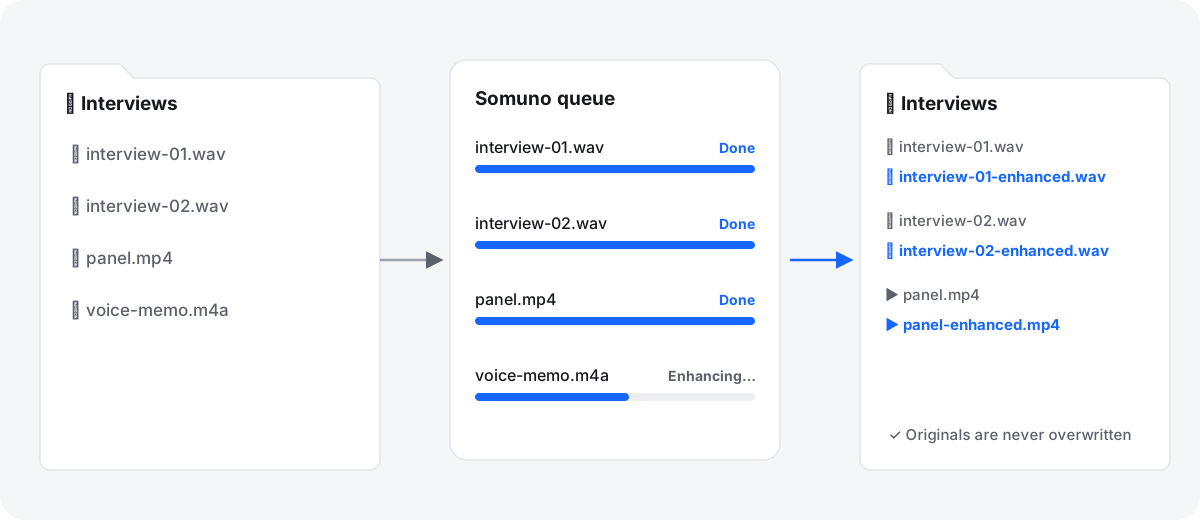
- Drag one or more folders onto the Somuno window, or choose File › Add Files… (⌘O) and select them. Somuno looks inside subfolders too and adds the files it can read: WAV, AIFF, FLAC, Apple Lossless, MP3 and AAC audio, plus MP4, MOV and M4V video.
- In the toolbar, choose the model (General Model, or Keep Laughter to keep laughter) and the Speed. Fast is about 1.7× faster than High Quality on long files, which adds up over a big batch. High Quality uses 5-second segments overlapping by half.
- Open Somuno › Settings… and set Save To: Next to the Original (the default) puts each result in the same folder as its source, and Choose Folder… collects all results in one folder. Change File Name Suffix if you want something other than “-enhanced”.
- In the same window, set Format (“Automatic” keeps lossless files in their format and turns lossy files into AAC) and Sample Rate. Choose 48 kHz (restore high frequencies) for phone or 16 kHz recordings.
- Click Start. Each card shows its progress, and the bar at the bottom shows how many files are done.
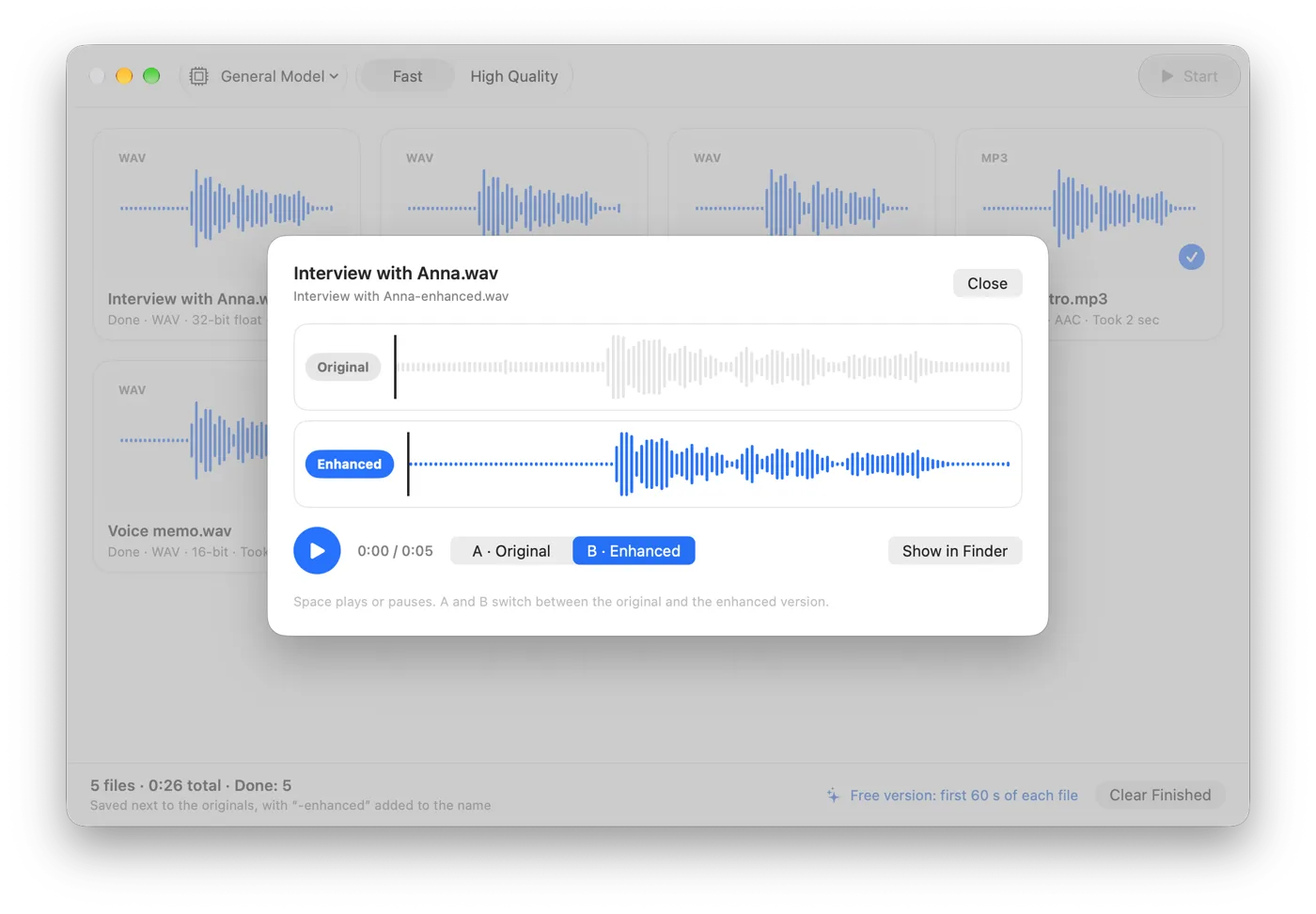
- Spot-check results as they finish: double-click a file to open Compare, press Space to play, and switch with A and B.
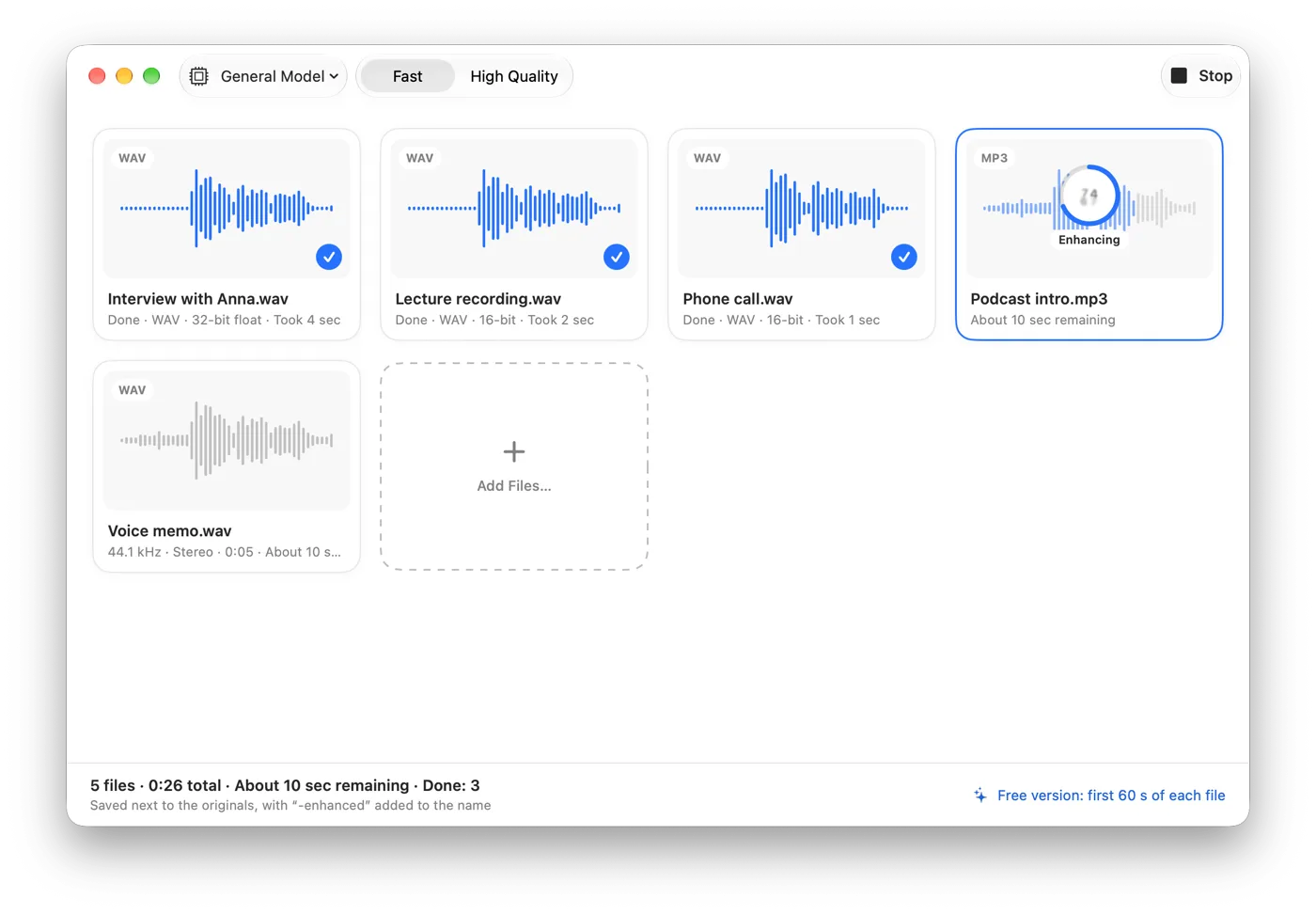
Settings are taken when each file starts, so a change you make while the queue is running applies from the next file on. If one group needs different settings, such as the 48 kHz option for a set of phone calls, run that group separately.
How to spot-check a batch without listening to everything
- Use headphones. Speakers hide the small artifacts you're listening for.
- Check a few files from each group: the noisiest one, the quietest speaker, and one with laughter or crosstalk.
- Jump around. Listen at the start, the middle and the end, and find the hardest moments: loud bursts, laughter, a door slam, music.
- Listen for the warning signs: chopped word endings, a thin or robotic voice, breaths that vanish unnaturally, noise pumping in the pauses.
- Fix by group. If one group sounds wrong, process those originals again with different settings: High Quality, Keep Laughter, or a lower Strength in Settings if the voices sound over-processed.
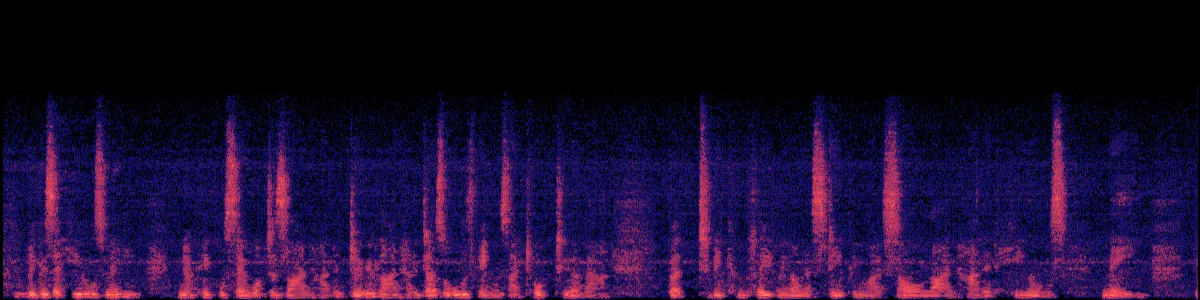
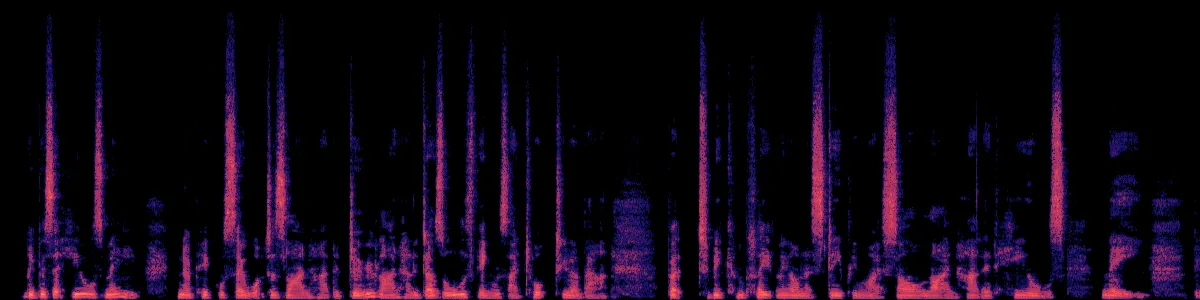
Here's the kind of change to listen for, in a podcast recorded with steady background noise:
 After Somuno
Test a whole batch with the free version
Somuno's free version has every feature but enhances only the first 60 seconds of each file. For a batch, that's useful: run the whole folder and you hear the first minute of every recording, which shows you which files clean up well before you buy Somuno Pro to process them in full.
Common batch mistakes
- Processing results again. If you rerun a folder where results were saved next to the originals, the earlier “-enhanced” files are in that folder too. Remove them from the queue, or use Choose Folder… to save results in a separate folder.
- Mixing music into a speech batch. Somuno is made for speech and removes or distorts music. Keep music files and music-heavy videos out of the run.
- Going lossy to lossy. MP3 in, AAC out is fine for listening. If you'll edit further, choose a lossless format.
- Judging by one file. A setting that suits the studio interviews may not suit the phone calls. Check each group.
What to know
How long a batch takes depends on your Mac and the length of the files. Somuno isn't real-time, isn't a plugin, and runs only on Macs with Apple silicon and macOS 14 or later. It can't separate people talking over each other, and very damaged audio can come out with artifacts, which is why a test run comes first.
For the details of each problem, see how to remove background noise on Mac, how to clean up the audio in a video and how to fix muffled or low-quality recordings. You can also hear before-and-after samples.
Questions
Will batch processing overwrite my original files?
Not in Somuno. Each result is a new file with a suffix, “-enhanced” by default, either next to the original or in a folder you choose.
Can I mix audio and video files in one batch?
Yes. Audio files and MP4, MOV and M4V videos can sit in the same queue. For videos, only the soundtrack is replaced; the picture is copied as is.
How long does a batch take?
It depends on your Mac and how long the files are. Fast is about 1.7× faster than High Quality on long files.
Can I put all the results in one folder?
Yes. In Somuno › Settings…, set Save To to Choose Folder… and pick the folder.