 Somuno
Blog › Guides
How to remove background noise from audio on Mac
To remove background noise from audio on a Mac, run the recording through a tool that separates the voice from the noise, save the result as a new file, and check it on headphones before you use it. For steady hiss or hum, the noise reduction effect in a free editor like Audacity can be enough. For noise that keeps changing – traffic, chatter, dishes, wind – a speech-enhancement model usually copes better, because it rebuilds the voice instead of subtracting one fixed noise pattern.
This guide explains which approach fits which noise, shows the steps in Somuno, a Mac app that cleans up voices on your own computer, and covers how to judge the result so you don't swap noise for artifacts.
What kind of background noise do you have?
Name the problem before you pick a tool. Most noise in voice recordings falls into one of two groups:
- Steady noise sounds the same from one second to the next: hiss from a cheap preamp, a laptop fan, air conditioning, the electrical hum of a badly grounded cable.
- Changing noise comes and goes: cars, people talking in the next room, keyboard clicks, a dog, rain, wind on the microphone.
The difference matters because classic noise reduction works from a noise profile. You select a few seconds where nobody is speaking, the tool learns what the noise looks like, and then it subtracts that pattern from the whole file. With steady noise the profile matches everywhere, and the result can be clean. With changing noise it doesn't match, so either noise is left behind or the voice starts to sound watery and metallic as the tool reaches for more.
If the voice sounds hollow or distant rather than noisy, the problem is probably room reverb, not noise. That needs a different fix, covered in how to remove echo and room reverb from a voice recording.
Before you start: habits that help with any tool
- Work on a copy. Keep the original recording untouched, so you can always go back and try again with different settings.
- Start from the original file. Every time audio is saved again as MP3 or AAC, it picks up a little compression damage, and a noise reducer can confuse that with noise or voice. If you export from an editor for cleanup, export WAV or AIFF.
- Keep the room tone. A few seconds of “silence” at the start of a recording are what profile-based tools learn from, and they help you hear what was removed.
- Listen on headphones. Laptop speakers hide low hum and the small artifacts that give over-processed audio away.
How to remove background noise in Somuno
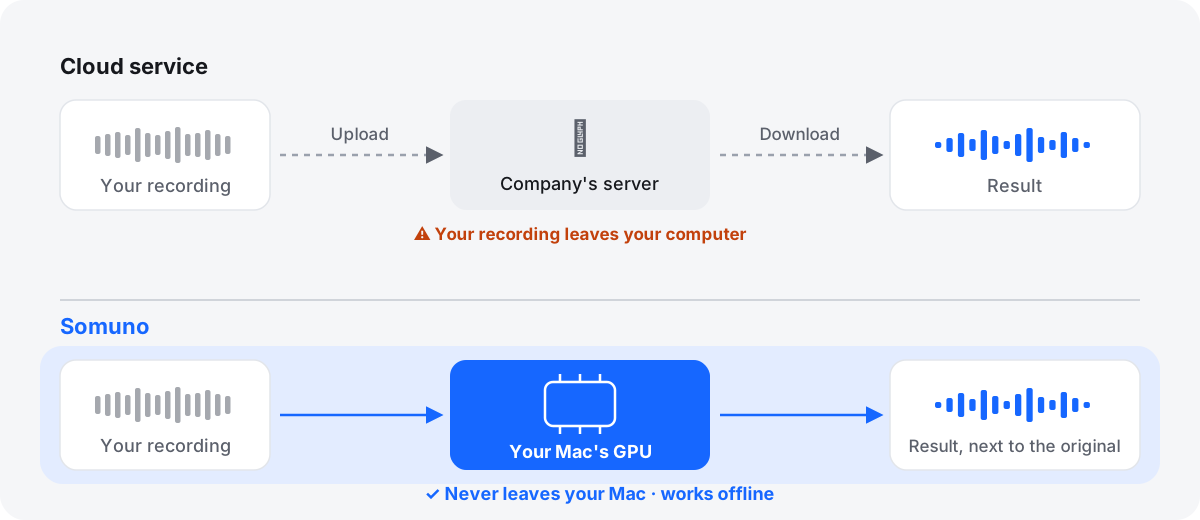
Somuno doesn't ask for a noise profile or per-band settings. It uses an AI speech-enhancement model, which predicts the clean voice and handles background noise, hum and room reverb in the same pass. Everything runs on your Mac's GPU, and your recordings are never uploaded. It needs a Mac with Apple silicon and macOS 14 Sonoma or later.
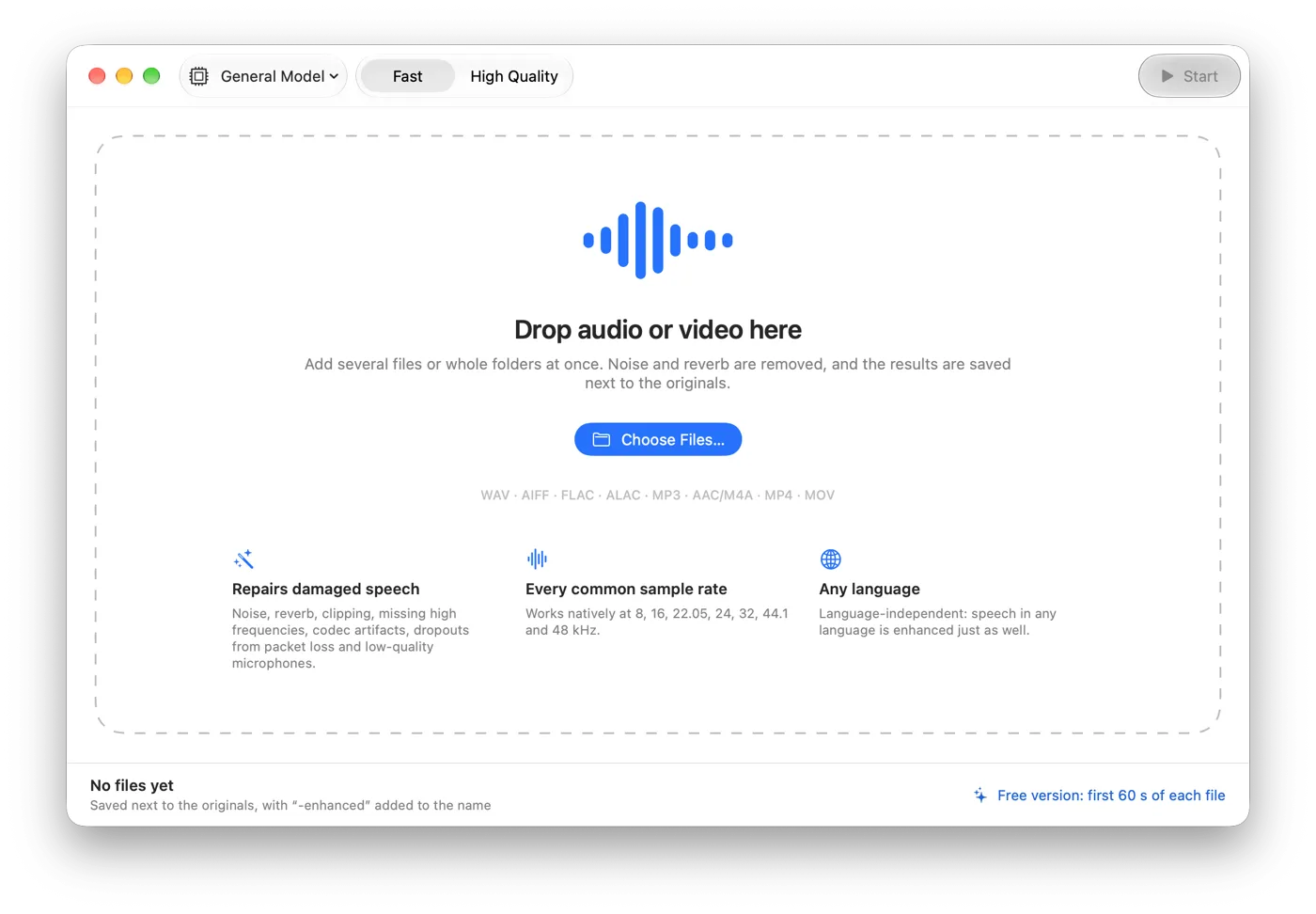
- Drag your recordings onto the Somuno window, or choose File › Add Files… (⌘O). You can add several files or whole folders at once.
- In the toolbar, leave the model on General Model. If the recording has laughter you want to keep, such as a podcast with guests, choose Keep Laughter instead.
- Pick a Speed. Fast works in 10-second segments and is about 1.7× faster on long files. High Quality uses 5-second segments that overlap by half. Use High Quality for recordings that matter.
- If you want, open Somuno › Settings… to choose the output Format and where results go under Save To. By default each result is saved next to the original with “-enhanced” added to the name, so nothing is overwritten.
- Click Start.
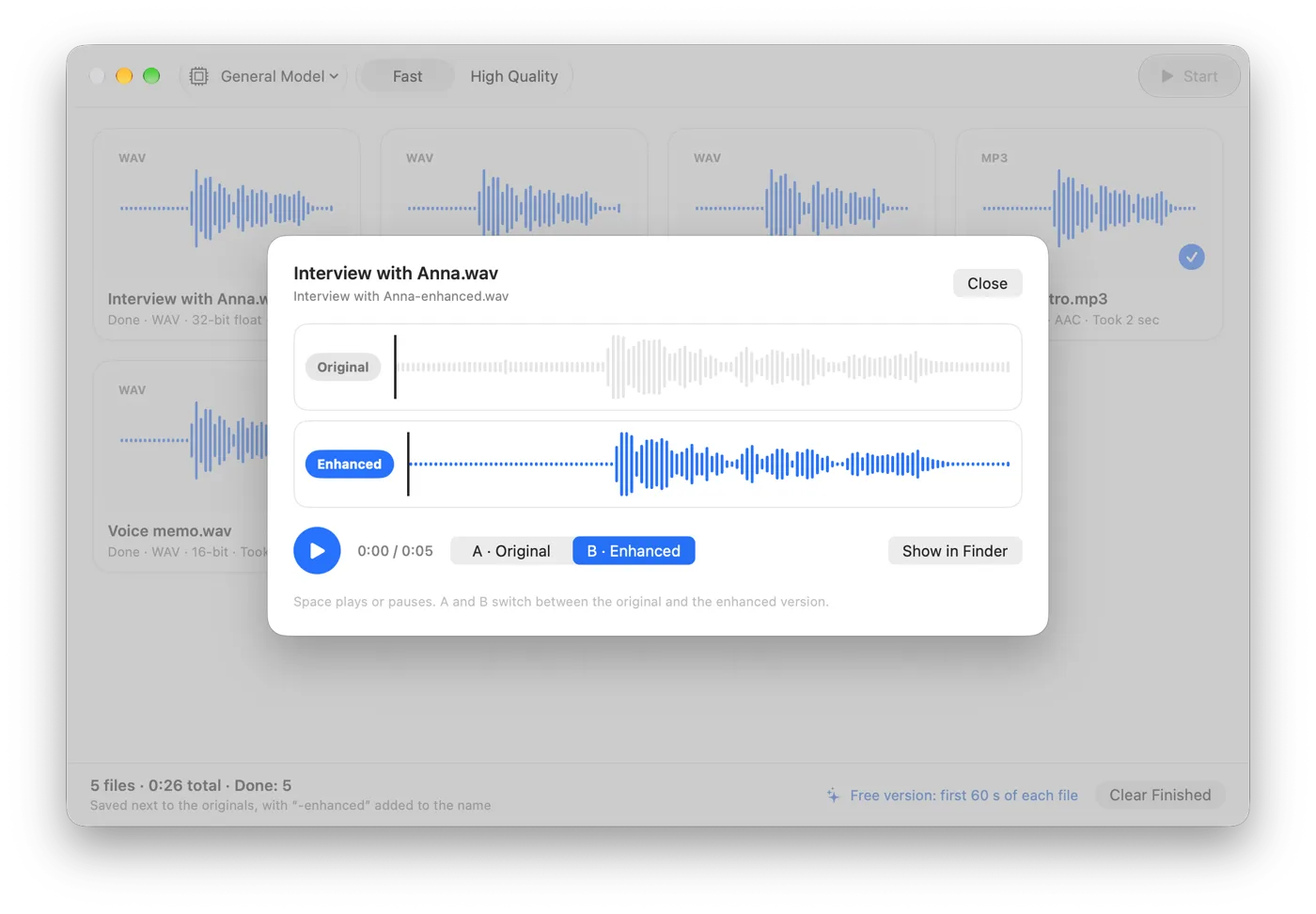
- When a file is done, double-click it to open Compare. Press Space to play or pause, and A and B to switch between the original and the enhanced version while it plays.
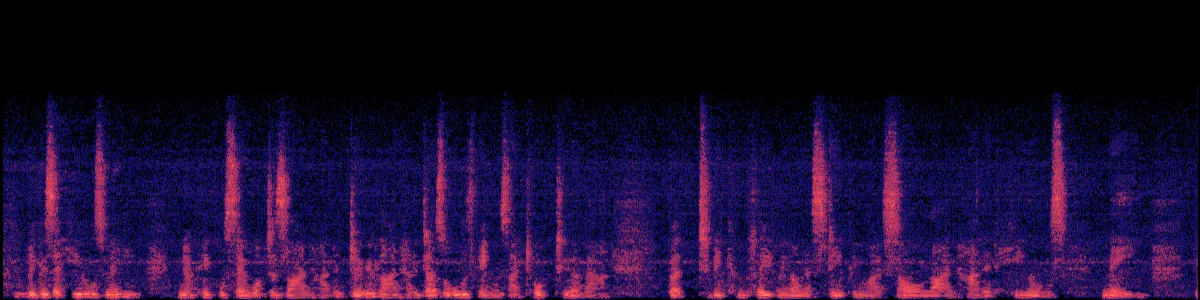
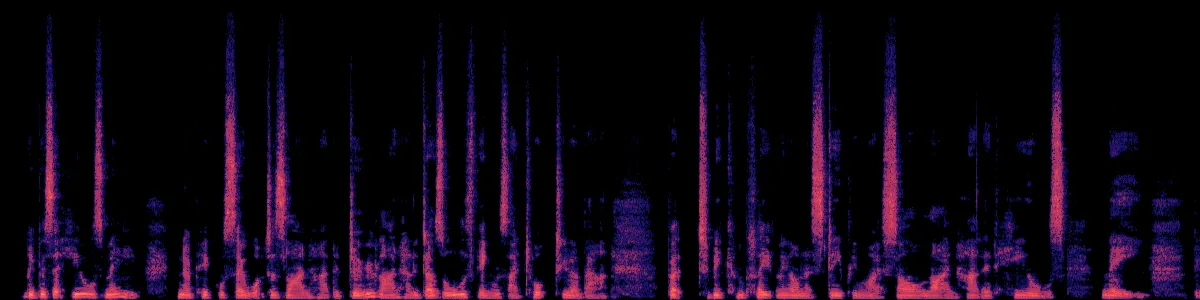
Here is what that does to a real recording, processed with the default settings. Both versions are set to the same loudness.
Podcast with background noise
A podcast voice buried in steady background noise.
 OriginalEnhanced
Original
Enhanced by Somuno
In the spectrogram of the original, a haze of noise fills every gap between words, and there is nothing above about 16 kHz. After Somuno, the gaps are dark, the harmonics of the voice stand out, and the empty top band has been filled in.
How to check the result
A noise reducer can only be judged by ear, and only if you listen carefully:
- Use headphones at a normal volume. Turn it up only to check the quietest parts.
- Watch out for loudness. If one version is louder, it will seem better. Judge clarity, not volume.
- Listen to the pauses. Is the noise gone, or does it pump up and down between words?
- Listen to consonants. S, T and F sounds should stay crisp. Word endings and breaths shouldn't be chopped off.
- Listen to the voice itself. Thin, lisping, robotic or underwater-sounding speech means the tool went too far.
- Check several places. The start of a file is often the quietest part. Jump to the noisiest moment too.
Don't over-process
The goal is a natural voice with noise low enough that nobody notices it, not total silence. A little natural room sound often feels more real than a voice floating in nothing.
- Use one good pass. Stacking noise reduction from a camera app, an editor and a plugin multiplies the artifacts of each.
- Blend some of the original back in. Most tools have an amount or mix control. In Somuno it's Strength in Somuno › Settings…: 100 % (the default) is fully enhanced, and lower values mix in the original. If the voice sounds over-processed, bring it down until it sounds natural again.
- Go back to the original. If a result isn't right, process the original again with different settings rather than running the result through again.
- Keep music out of it. Somuno is made for speech, so it removes or distorts music and other non-speech sounds. Clean the dialogue first and add music afterwards.
How to prevent background noise next time
- Get closer to the microphone. Each time you halve the distance, your voice gets about 6 dB louder while the room stays the same.
- Switch off what you can: fans, air conditioning, the fridge, notifications.
- Soften the room. Rugs, curtains, a sofa and full bookshelves absorb sound. Stay away from windows facing a street.
- Record 10 seconds of room tone before you start talking. Editors use it to fill gaps, and noise reducers learn from it.
- Record lossless (WAV or AIFF) when your recorder allows it, and don't set the level so high that loud words distort.
- Monitor on headphones while recording, so you catch the hum before it's on tape.
When a different tool fits better
Somuno processes files. It isn't real-time, so it can't clean a live call or stream, and it isn't a plugin inside an editor or DAW. Its only amount control is Strength: there are no per-band controls and no spectral editing, so if you need to paint out a single cough or phone ring by hand, an audio repair suite with a spectral editor is the right tool. It can't separate two people talking over each other. And it runs only on Macs with Apple silicon. If you're already editing in an app with its own noise removal, trying that first can save a step.
Results depend on the recording, and very damaged audio can come out with artifacts. The free version has every feature and enhances the first 60 seconds of each file, so you can hear the result on your own recordings before you pay. Listen to more before-and-after samples, see pricing, or compare options in noise reduction software for Mac. If you have a whole folder to do, see how to clean up a folder of recordings at once.
Questions
Is there a free way to remove background noise on a Mac?
Yes. Audacity is free and has a noise reduction effect that works well on steady hiss and hum. Somuno's free version has every feature but enhances only the first 60 seconds of each file. Somuno Pro, a one-time purchase, enhances whole files.
Can I clean up voice memos from my iPhone?
Yes. Voice Memos saves M4A files, which Somuno opens directly. Move them to your Mac, drop them onto the Somuno window and click Start.
Does Somuno upload my recordings?
No. Processing happens on your Mac's GPU, works without an internet connection and needs no account.
Will it remove background music too?
Usually, yes. Somuno is built for speech and removes or distorts music and other non-speech sounds. It isn't meant for cleaning up music.
Can I remove noise from a video file the same way?
Yes. For MP4, MOV and M4V files, Somuno replaces only the soundtrack and copies the picture as is. See how to clean up the audio in a video.