 Somuno
Blog › Guides
How to fix muffled, clipped or low-quality voice recordings
Bad voice recordings usually have more than one problem. A phone call is narrowband and compressed. An old tape is hissy and dull. A Zoom recording can be muffled, clipped and full of compression artifacts all at once. To fix one, first work out what's wrong, then repair it in as few passes as possible – stacking a separate effect for every problem is how voices end up sounding worse than when you started.
On a Mac, Somuno repairs the common problems in one pass: noise and hum, reverb, clipping, missing high frequencies, codec artifacts, dropouts and the sound of cheap microphones. For low-rate audio such as phone calls or 16 kHz files, its 48 kHz (restore high frequencies) setting lets the model rebuild highs the file never had. Below: how to diagnose a recording, what you can realistically expect, and the steps.
What's wrong with your recording?
Listen on headphones and match what you hear to a cause:
- Muffled or dull: the high frequencies are missing. Common causes are a low sample rate (phone and dictation audio), a call that squeezed the voice to fit the connection, a microphone hidden under clothing or pointing away, or simply a cheap microphone.
- Harsh and crackly on loud words: clipping. The level went past the maximum and the tops of the waveform were cut flat.
- Hiss, hum or rumble: background noise from the electronics, the mains or the room.
- Hollow and distant: room reverb. See how to remove echo and room reverb.
- Warbly, metallic or watery: codec artifacts from heavy compression, often from low-bitrate MP3s or call recordings.
- Gaps and stutters: dropouts from lost packets in an online call.
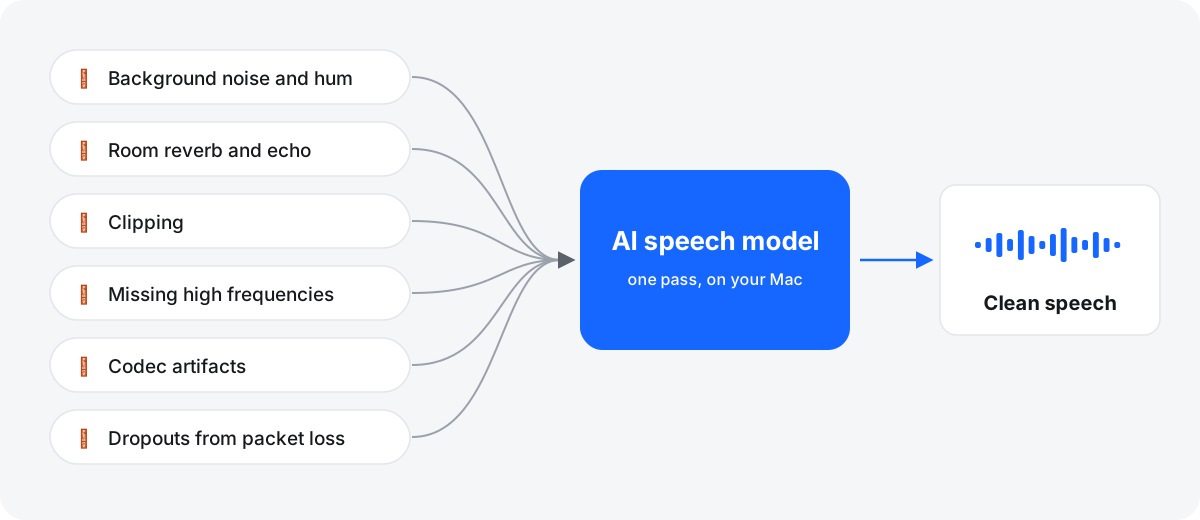
Why phone, Zoom and 16 kHz recordings sound muffled
A digital file can only hold frequencies up to half its sample rate. An 8 kHz file stops at 4 kHz, and a 16 kHz file stops at 8 kHz. Classic phone audio carries roughly 300 to 3,400 Hz. But the sounds that make speech crisp and easy to follow – S, F, T, the air around the voice – reach well above that. Cut them off and speech turns dull and tiring to listen to.
Video calls add a second layer. Apps such as Zoom compress the voice to fit the connection, and they may cut bandwidth when the connection is poor. So a meeting recording can sound muffled even when the file itself has a normal sample rate.
Two common fixes don't work. Resampling a 16 kHz file to 48 kHz in an editor makes room for high frequencies but adds none. Boosting the highs with EQ on a narrowband file mostly raises hiss, because there's no voice up there to boost. To get the highs back, they have to be rebuilt from what's left, which is called bandwidth extension. That's something a speech-enhancement model can do.
What “48 kHz (restore high frequencies)” does
Somuno's Sample Rate setting, in Somuno › Settings…, has two choices:
- Same as original (the default) keeps the file's rate. A 16 kHz file comes out cleaner, but it is still a 16 kHz file and can't hold anything above 8 kHz.
- 48 kHz (restore high frequencies) enhances the file at 48 kHz and saves a 48 kHz result, and the model rebuilds the missing highs.
Use it for phone calls, voicemail, dictation recorders, 16 kHz speech datasets and other low-rate audio. Before processing, each file's card in the queue shows its sample rate, so you can tell at a glance. For files that are already at 48 kHz, the setting changes nothing. And even with Same as original, the model repairs missing highs up to the limit of the file's own sample rate, as in this podcast recording processed with the default settings:
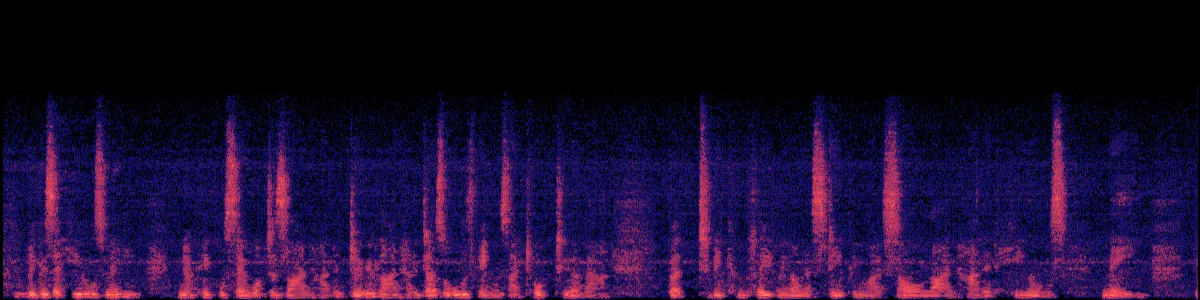 After Somuno
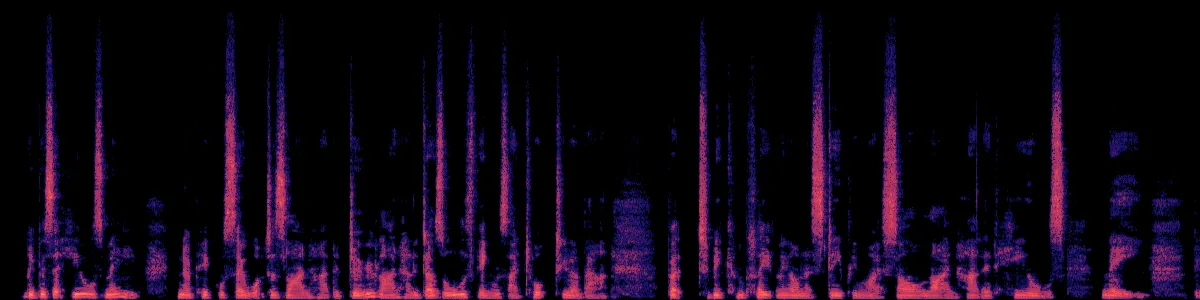
Rebuilt highs are an informed estimate, not a recovery of the original sound. They make speech clearer and more natural, but they weren't in the recording.
Hear it: spaceflight radio from 1962
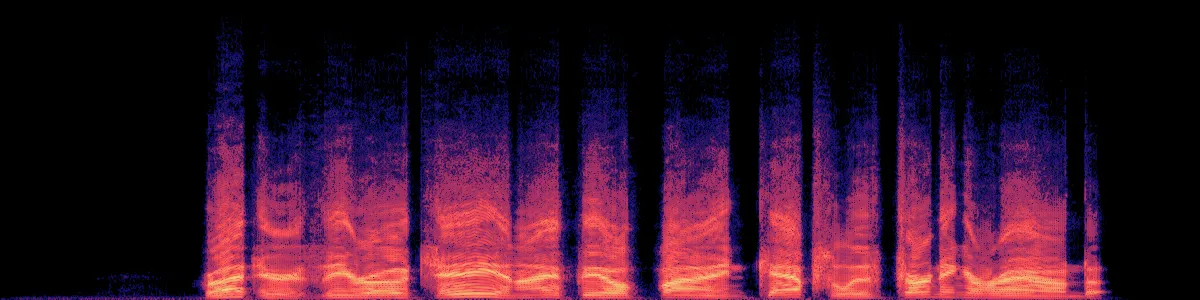
This is NASA radio audio from the Mercury-Atlas 6 flight: narrowband, noisy and distorted. It was processed with Somuno's default settings, and both versions are set to the same loudness.
Spaceflight radio, 1962
NASA radio audio from the Mercury-Atlas 6 flight: narrowband, noisy and distorted. Audio: NASA.
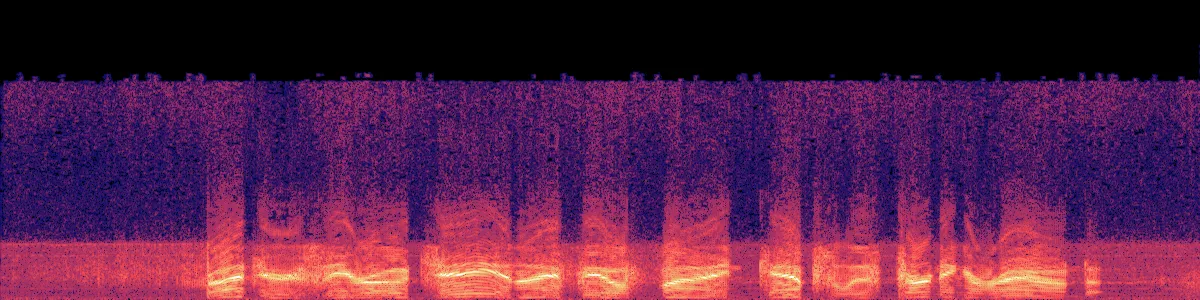
 OriginalEnhanced
Original
Enhanced by Somuno
In the original spectrogram, the voice sits inside a thick band of noise. Afterwards the noise is gone and the voice is clear and continuous.
How to fix a bad recording in Somuno
- Drag the recordings onto the Somuno window, or choose File › Add Files… (⌘O). Somuno reads WAV, AIFF, FLAC, Apple Lossless, MP3 and AAC from 8 to 48 kHz, and the soundtrack of MP4, MOV and M4V videos.
- If the files are below 48 kHz, open Somuno › Settings… and set Sample Rate to 48 kHz (restore high frequencies).
- Also in Somuno › Settings…, check Format. “Automatic” keeps lossless files lossless and turns lossy files such as MP3 into AAC. If you'll edit the result further, choose WAV, AIFF, FLAC or Apple Lossless.
- In the toolbar, keep General Model and set Speed to High Quality for difficult recordings.
- Click Start.
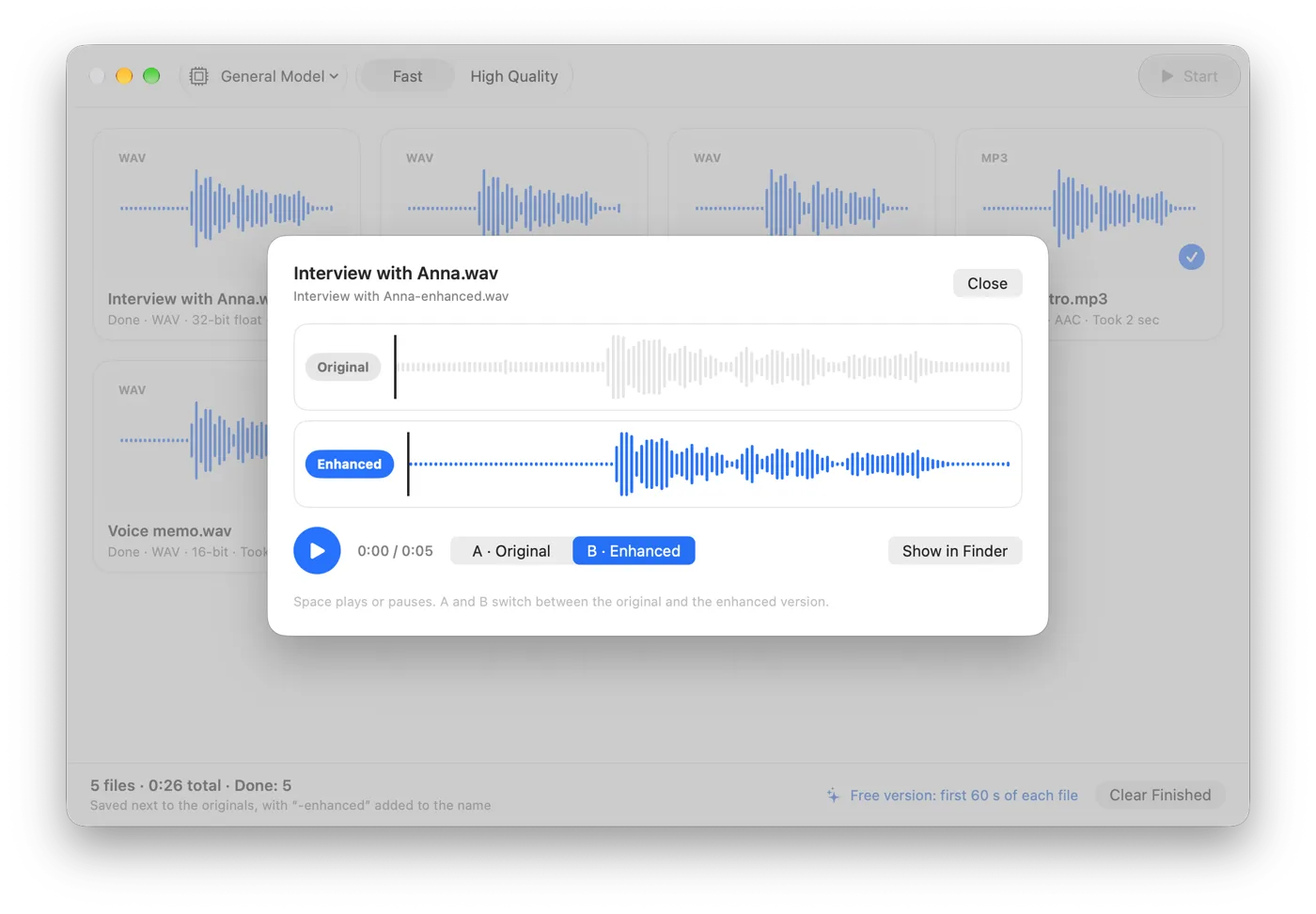
- Double-click a finished file to open Compare. Press Space to play and A and B to switch. If something sounds wrong, process the original again – with the other Sample Rate choice, or with a lower Strength to mix some of the original back in – rather than running the result through a second time.
What you can and can't expect
- Clipping: light clipping is easier to repair than heavy, sustained distortion, where most of the waveform is gone.
- Very damaged audio can come out with artifacts. Try the free version first: it has every feature and enhances the first 60 seconds of each file.
- Overlapping voices can't be separated. Two people talking at once stay together.
- Music is removed or distorted, because the model is made for speech.
- Tape speed problems such as wow and flutter are a different kind of damage and need a dedicated tool.
For archives, journalism and research: keep the original recording as the record, label the restored copy as restored, and don't rely on rebuilt detail to decide what someone said.
Tips for old tapes and archives
- Digitize once, and do it well. Clean the player's heads, then record to WAV or AIFF at 44.1 or 48 kHz and 24-bit, with the level well below the maximum.
- Keep the flat transfer. Don't apply noise reduction while digitizing. Save the untouched transfer as your master and work on copies.
- Avoid MP3 in the middle. Use lossless files until the final version.
How to avoid bad recordings next time
- Record each person locally for interviews over a call, instead of relying on the call recording. Each side records their own microphone, and you combine the files afterwards.
- Leave headroom. Set the level so loud words peak well below the maximum. A quiet recording can be raised; a clipped one has lost information.
- Get closer to the microphone, keep it uncovered, and record lossless at 48 kHz when you can.
For noise on its own, see how to remove background noise from audio on Mac. For a box of tapes or a season of calls, see how to clean up a whole folder at once. Hear more samples or see pricing.
Questions
Can a phone call recording be made to sound like a studio recording?
Not exactly, but it can get much clearer. With “48 kHz (restore high frequencies)”, the model rebuilds the highs a phone line cuts off. The result is an estimate, so it won't match a studio microphone, and very poor calls can show artifacts.
Does converting a file to 48 kHz improve the quality?
Not on its own. Resampling makes room for high frequencies but adds none. The improvement in Somuno comes from the model rebuilding the highs while it works at 48 kHz.
Can Somuno fix clipped, distorted audio?
It repairs clipping as part of the same pass. Light clipping repairs better than heavy distortion. Test a short section with the free version first.
Can I restore old cassette or reel-to-reel recordings?
Digitize them to a lossless file first. Somuno can then reduce tape hiss and noise and restore missing highs in speech. It's built for voices, so recordings of music on tape aren't a good fit.